
Sync, check and back up GG data
Install the download extension, retrieve PokerCraft records and verify files against actual imports.
On this page
Distinguish the two data types
GG data import in both the hand-analysis and bankroll sidebars opens the same page. Hand histories go to hand analysis; cash histories can also provide observed bankroll samples. Game summaries, including tournament summaries, become bankroll records. Download both summaries and histories when reviewing tournaments.
Prepare the app and database
Keep RtGTO running, confirm the active database and open PokerCraft in your browser. Imports go into that database; analysis filters do not restrict them.
Install or update the extension
Select Install the GG download extension and copy the unpacked folder path.
Open chrome://extensions in Chrome and enable Developer mode.
Select Load unpacked and choose the extension folder.
Open the extension and sign in as prompted. After an app update, if the extension is outdated, install it again from the app and reload it on Chrome's extensions page.
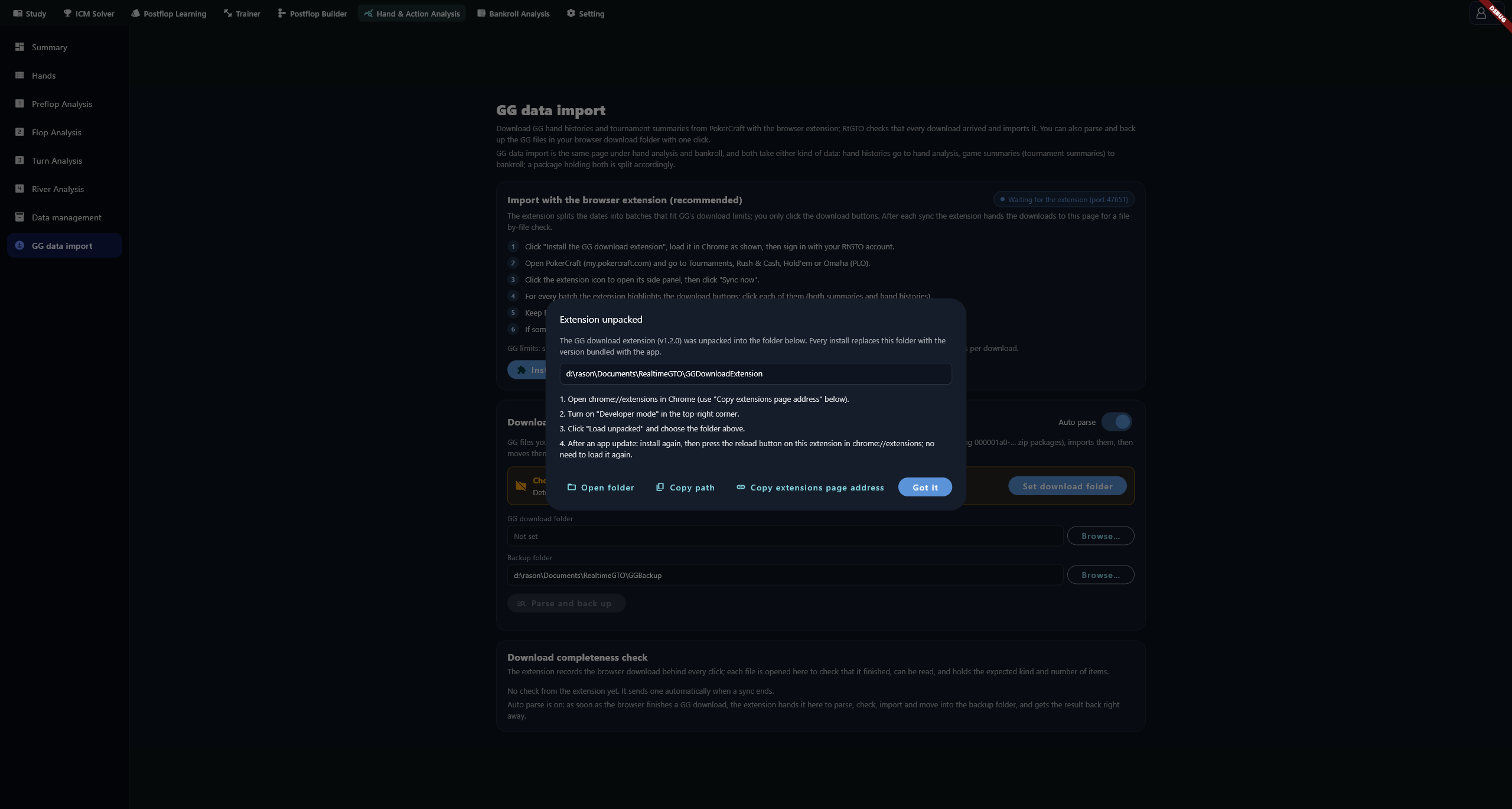
Wait for Extension connected before syncing. If it still says waiting, check that the app is running and the extension is loaded, then refresh PokerCraft.
Sync and choose when to parse
Open the game category in PokerCraft, open the extension's side panel and select Sync now. Click the highlighted download buttons for each batch. For tournaments, download both summaries and hand histories. Keep the app running until download checking finishes.
With Auto parse on, arriving files are parsed, checked and imported immediately. With it off, downloads are processed together at the end of the sync. Turning it off does not disable importing.
For missing dates, use Re-download this category and check the result again. Available dates and batch limits depend on PokerCraft's current offering; retrying cannot guarantee access to all older records.
Verify downloads and additions
| Count | Meaning |
|---|---|
| Entries | Entries including re-entries |
| Tournaments | Distinct tournaments |
| Hands / Files | Hand and file counts |
| Latest import | Actual additions, unchanged records and failures for the batch |
Arrived means the download passed its check; Missing means a file has not arrived; Count differs means counts disagree; repaired means a missing batch arrived later. Hover a row's matches by details to see whether it used entries, tournaments, hands or files, and any date or tolerance rules.
Downloaded counts are not database additions: duplicate records may add nothing. Check dates and contents in Hands or Sessions afterward.
The list displays the latest 50 downloads from this app run. Clear check history clears only the check log, not imported data. Restarting also resets these run counters. Use Copy log before clearing when troubleshooting.
Import from a folder and keep backups
Under Download folder check and backup, select the browser download directory and a separate backup directory, then start checking. Recognized GG files are processed and placed in the backup folder. If moving fails, copying may leave the source in place. A source file identical to an existing backup may be deleted as a duplicate.
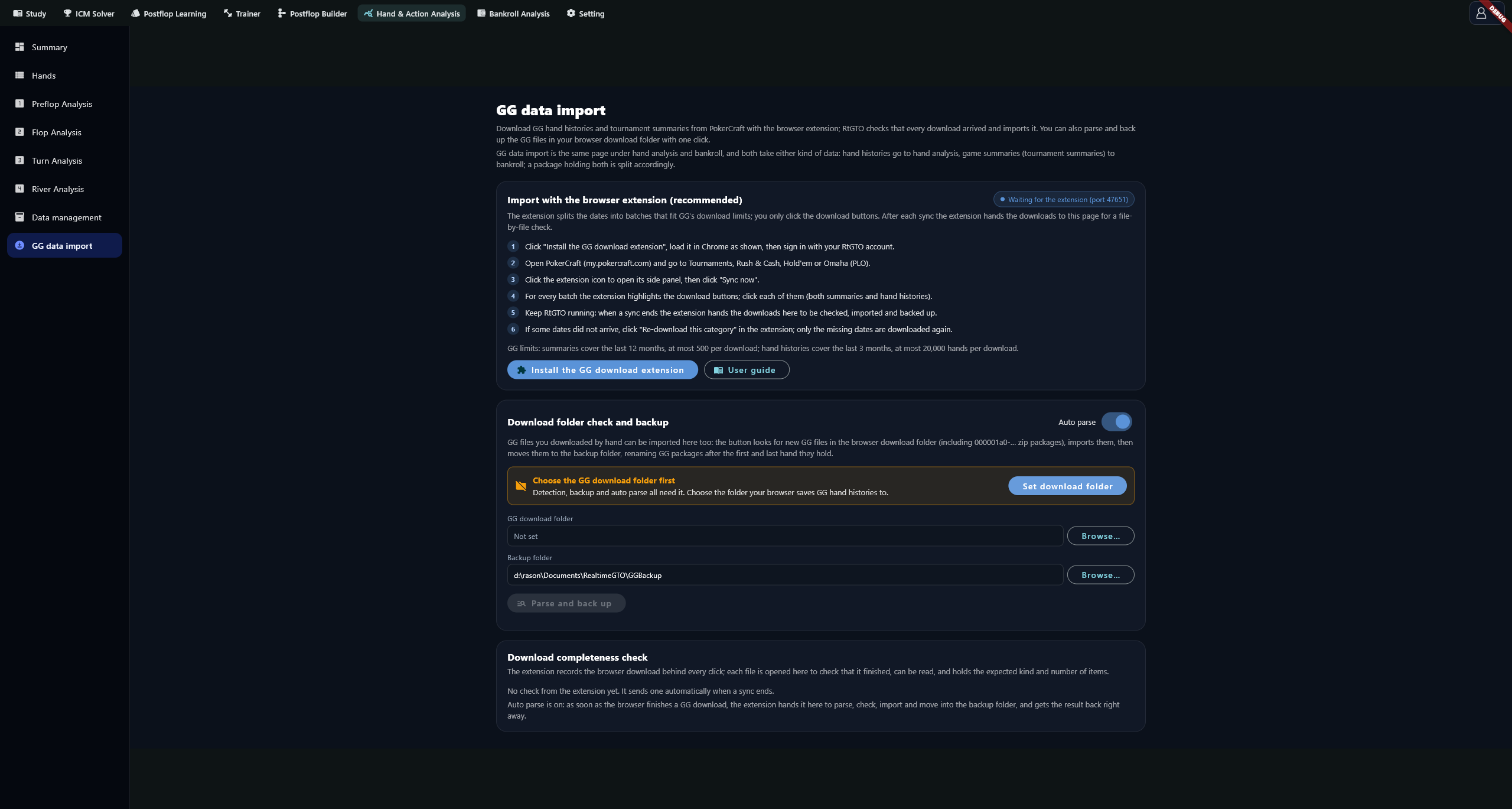
The default backup is RealtimeGTOGGBackup under Documents. Changing the backup directory also moves existing backups; check the destination and available space first.
Troubleshooting
Check the batch's dates, data type, matching rule and log. Retry missing batches. For differing counts, check re-entries, multi-day tournaments and date selection. If files arrive without new records, inspect Latest import for duplicates or failures and confirm which database received them.