
Change settings and back up data
Set language, manage databases and caches, restore backups, and configure the solver and AI.
On this page
Open Setting
Select Setting in the top bar. For app updates, see Check and install updates.
Language and solver cache
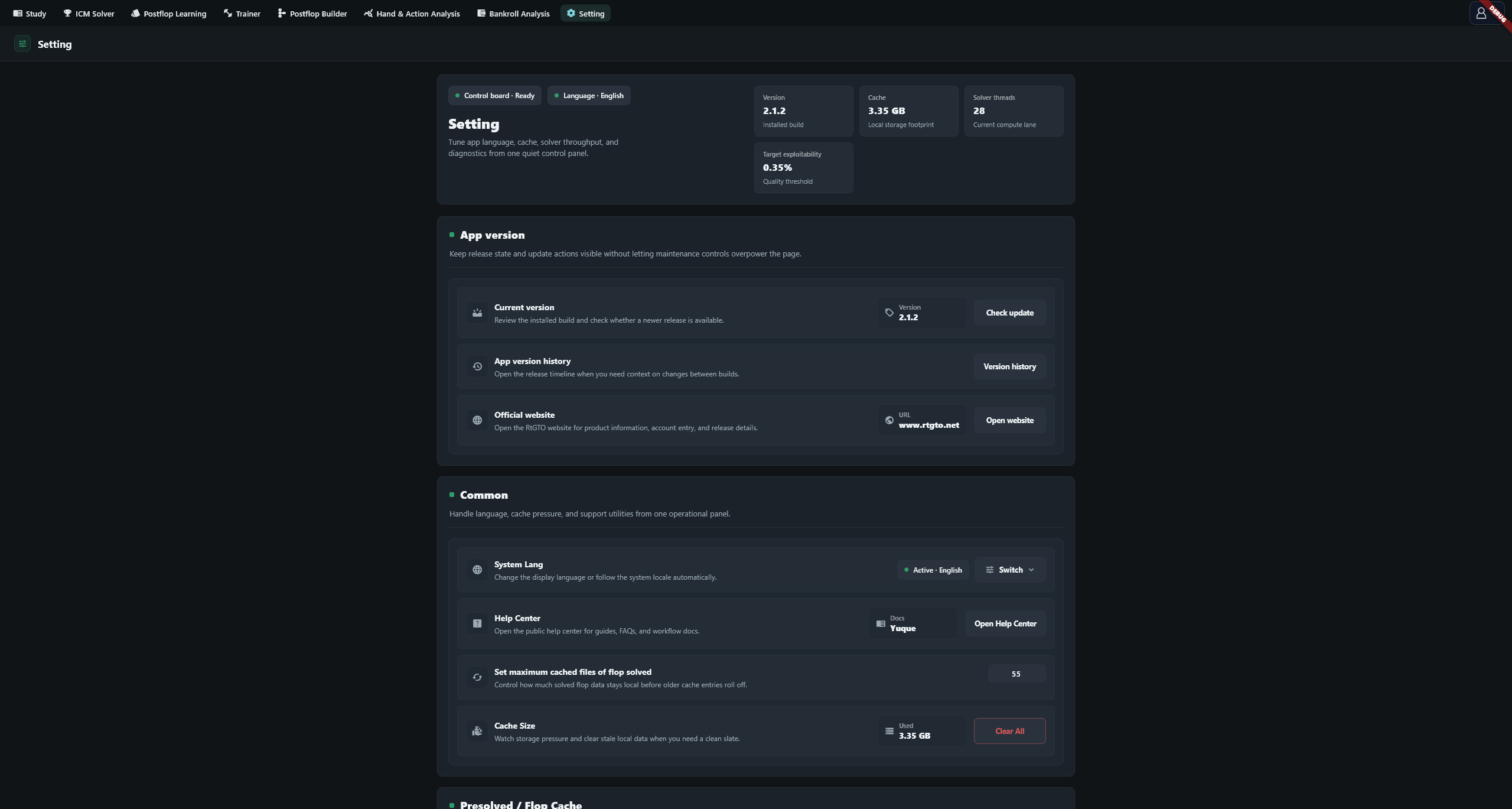
Under Common → System Lang, choose English, simplified Chinese, traditional Chinese or the system language. The change applies immediately.
Set maximum cached files of flop solved defaults to 8 result files, not 8 GB. Edits save automatically; the count limit is enforced on the next launch. Setting it to 0 clears the solve cache at that launch. Cache Size shows current disk usage; Clear All clears it immediately. Cleared spots must be solved again. Training packages and databases are managed separately.
Databases and training storage
The active Bankroll & analysis database is shared by both modules. New names must be nonempty, unique and no longer than 40 characters. After creating a database, select Use to switch to it. Existing databases can be renamed.
Deleting a database permanently removes its bankroll and hand-analysis data. Back it up first. The default database cannot be deleted; switch away from the active database before deleting it.
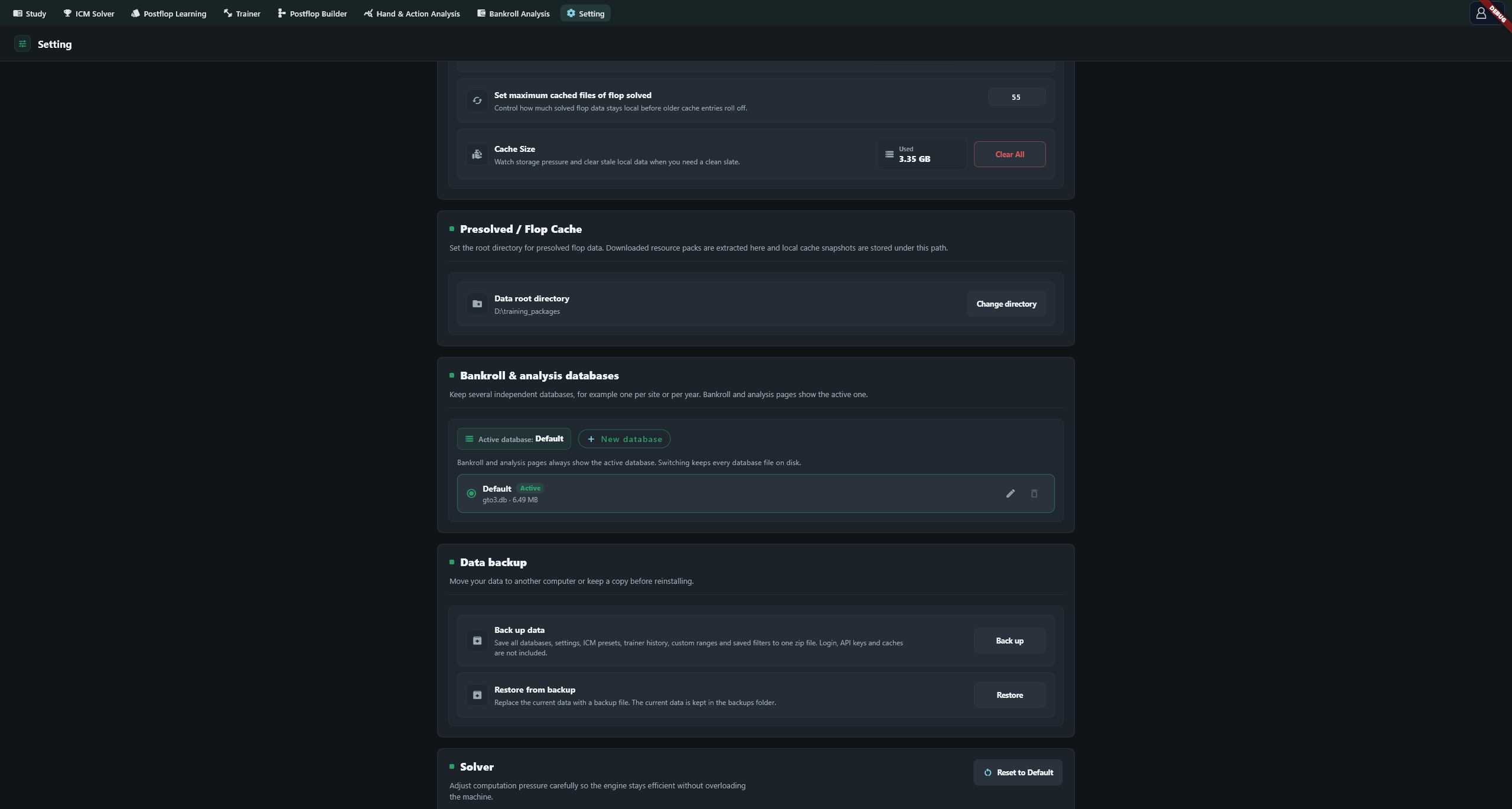
Presolved / Flop Cache → Data root directory sets the location for training and resource packages. Changing it does not move existing files; follow Data root directory.
Back up and restore
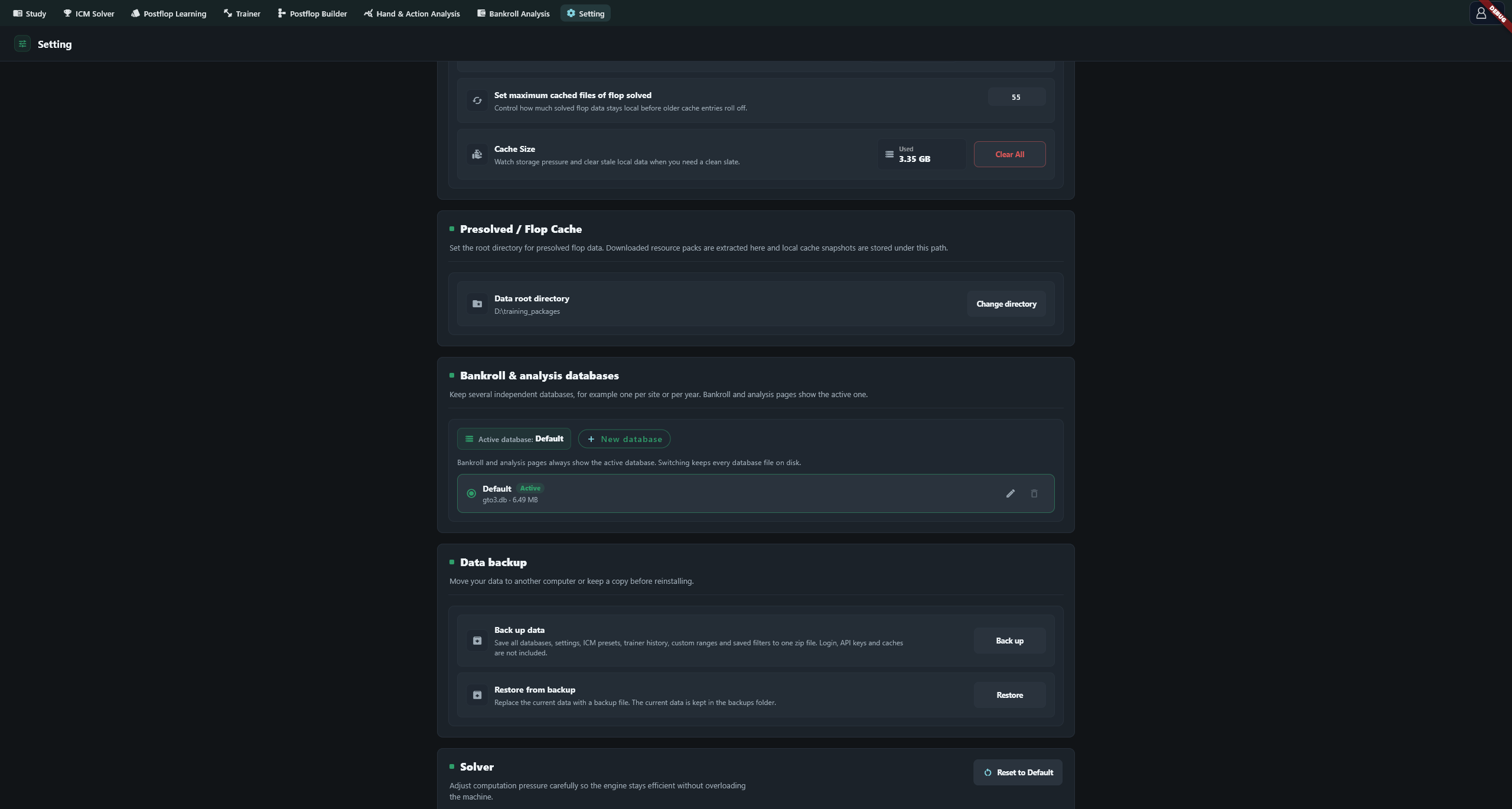
Use Back up under Data backup and save the ZIP. It contains databases, settings, ICM presets, trainer history, custom ranges and saved filters. Login credentials, API keys and solver caches are excluded. Keep a separate copy of your training-package directory.
To restore, select a backup ZIP created by the app and confirm. The backup replaces existing databases and related settings on the next launch. Save a fresh backup first. The app also moves the replaced data into its backups folder. Choose Restart now to apply the restore, or Cancel restore before restarting to cancel it.
If the backup was created by a newer app version, update before restoring. Do not edit the contents of the backup ZIP.
Solver threads and accuracy
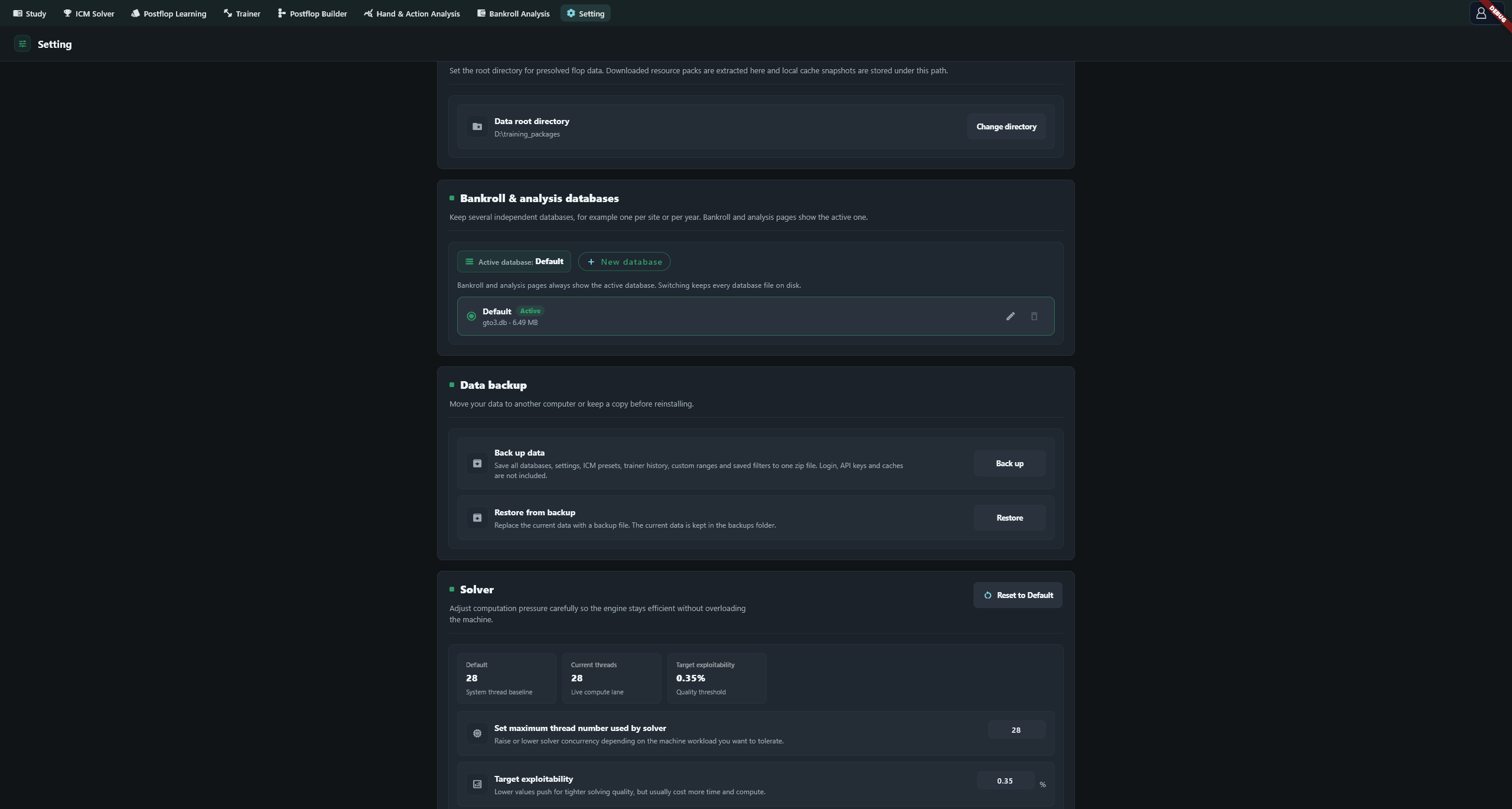
Maximum threads defaults to the machine's logical core count. Target exploitability defaults to 0.35%; enter a percentage. A lower target generally requires more computation. Edits save automatically. Use a positive integer for threads; if an invalid value prevents solving, Reset to Default restores these two settings.
Configure an AI provider
Open AI Diagnosis → Configure. Enter the provider's Base URL, API Key and Model Name, or start from a preset. Fetch Models retrieves available models; Test Connection checks the connection. Finish with Save Settings.
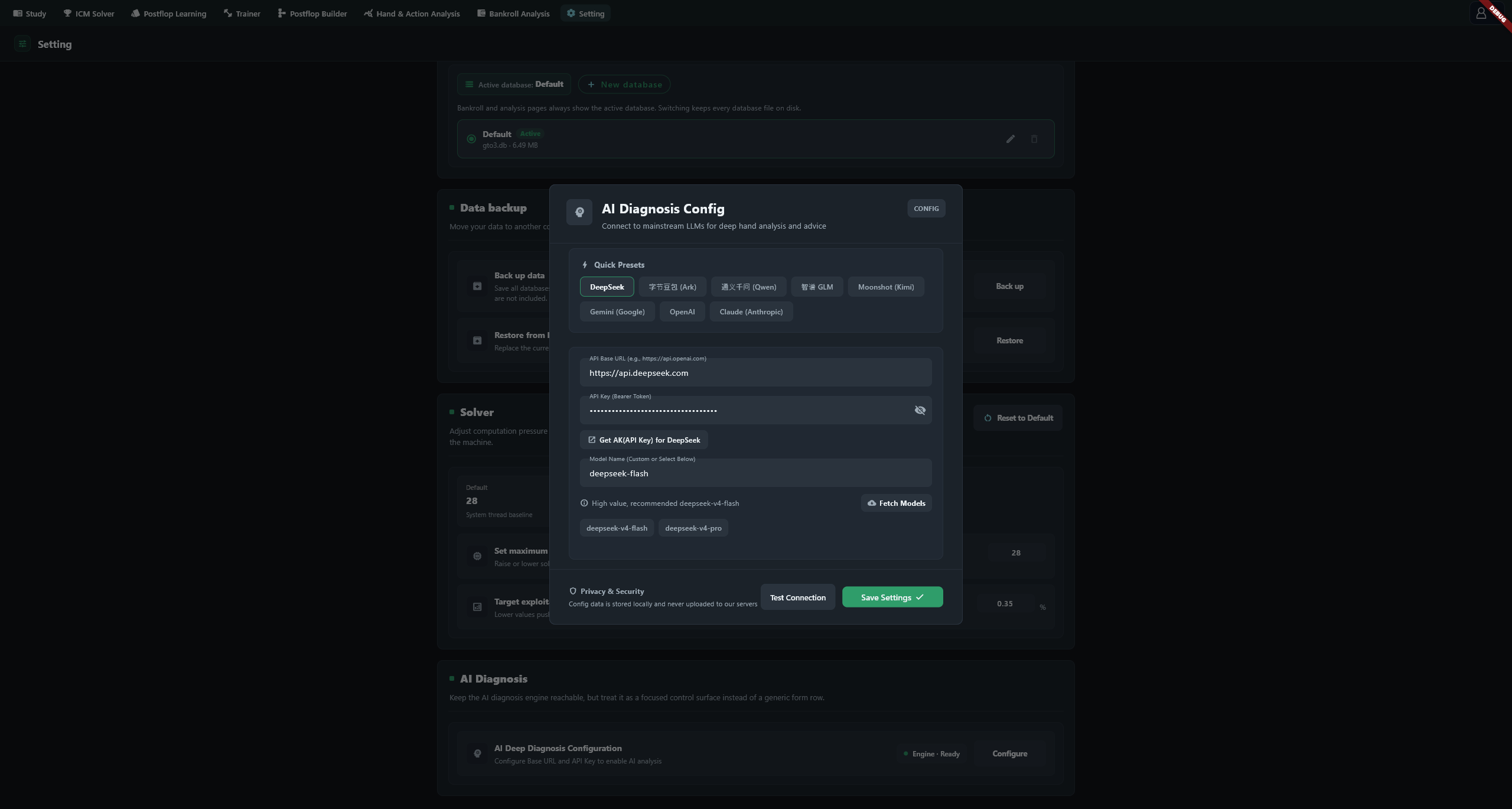
Analysis requests are sent to the configured provider. If a connection fails, check the address, key, model and error details. A successful connection test still needs Save Settings before analysis pages can use the configuration. Re-enter the API key after restoring on another device.