
Import and manage hand data
Upload or paste histories, check results, recalculate records and manage databases.
On this page
Confirm the database
Open Hand & Action Analysis → Data Management and check the active database name. Importing, recalculating and clearing apply to this database regardless of analysis-page filters.
Upload files or paste histories
Choose Upload and select TXT files, ZIP archives or a folder. Folder imports include recognizable files in subfolders. The app detects the source format. The wizard processes the source, parses records and writes them; wait for the final result.
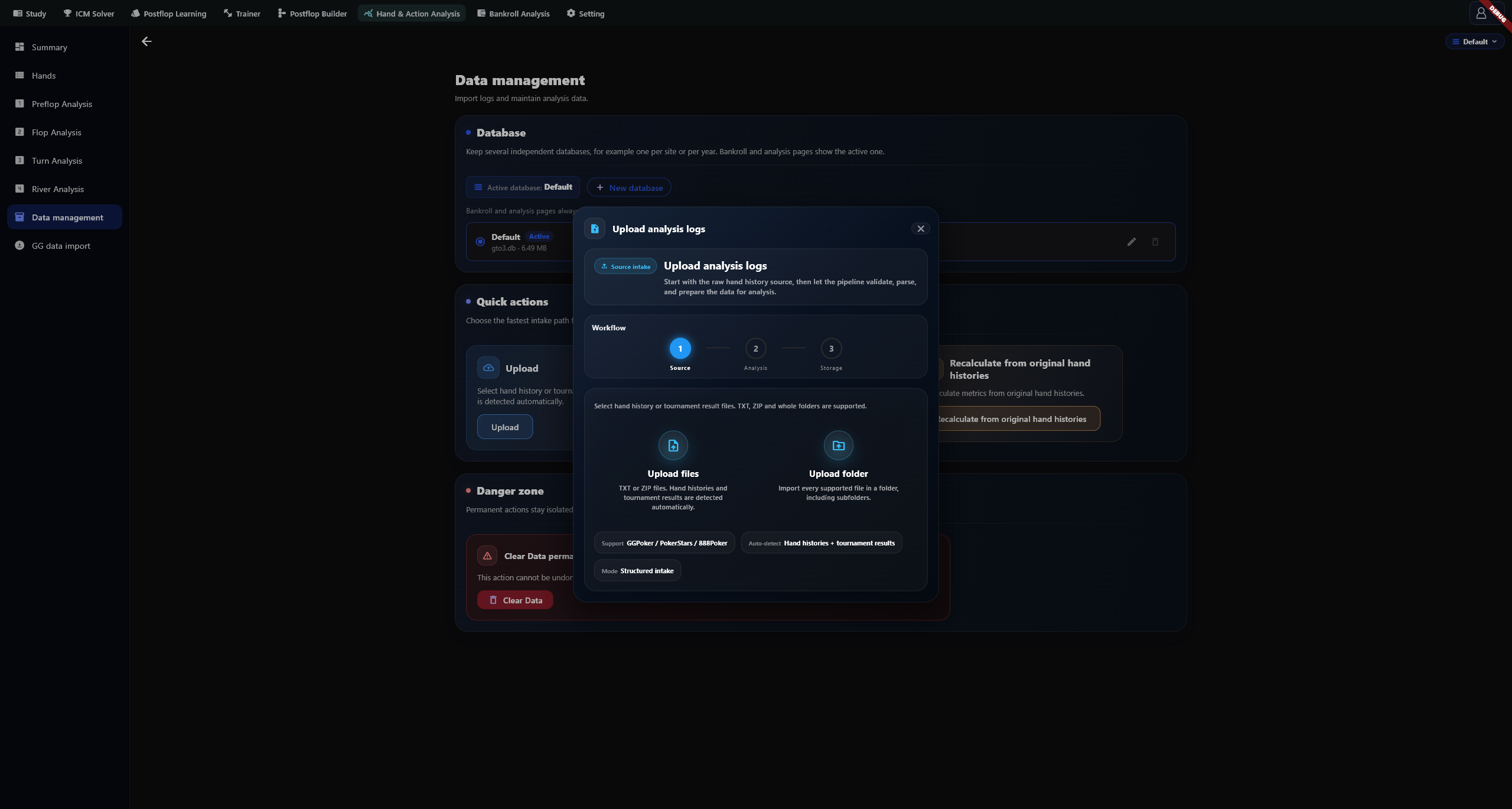
For copied hand text, copy the complete history and choose Paste to read the clipboard. Avoid closing the window while records are being written. Cancelling requires confirmation; unfinished records may need another import.
Check the result
Read the new, recalculated, unchanged and failed counts separately, and inspect failed files. Percentages describe the current stage; completed parsing does not mean every record has been stored. Importing identical records again normally reports them as unchanged.
Open Hands afterward and check dates, hand numbers and contents. For a failure, retain the error and original file. A processed-file count alone does not establish a successful import.
Recalculate existing records
Recalculate from original hand histories uses stored source histories for hands marked as needing recalculation. Check the pending count, start the operation and wait for completion. An ordinary duplicate import does not force all existing statistics to be overwritten.
Manage databases
Databases serve both bankroll and hand analysis. Create a nonempty, unique name of up to 40 characters, then select Use to switch. You can also rename a database. The default database cannot be deleted; switch away from an active database before deleting it. Deletion is permanent, so back up first.
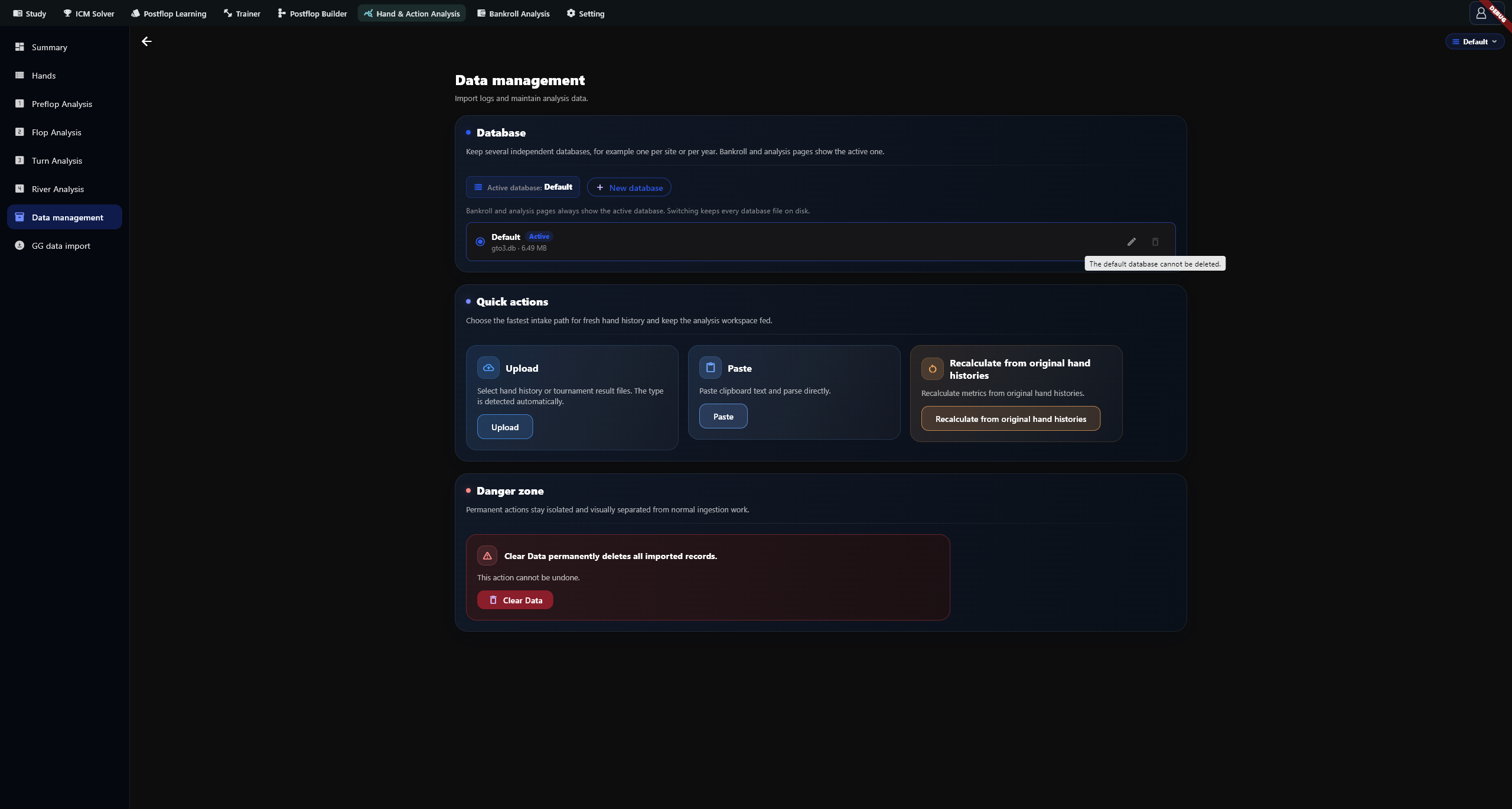
Check before clearing
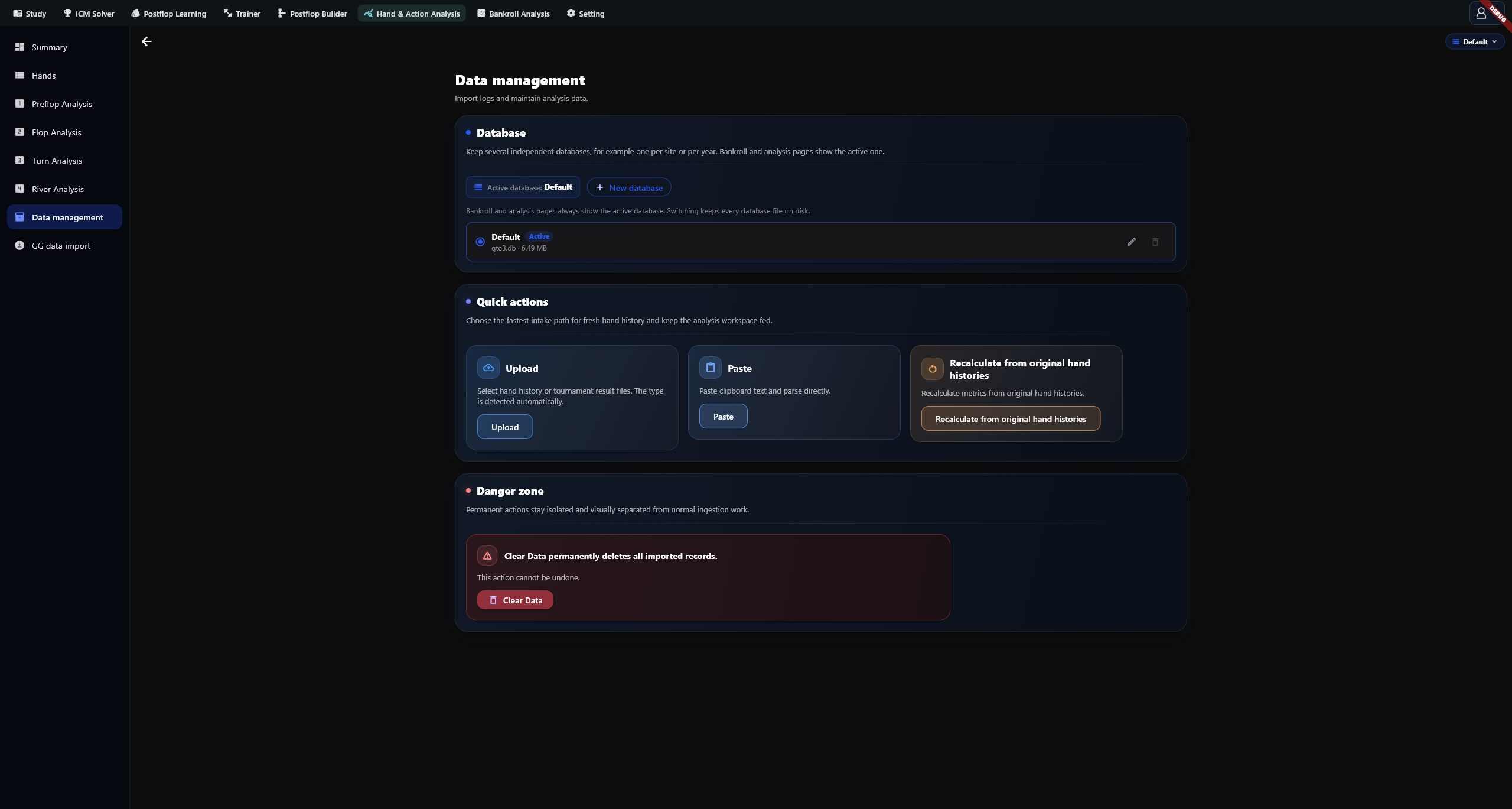
Clear Data in the Danger zone permanently clears imported hands and related sessions in the active database. Date, position and game filters do not narrow this operation. Back up and confirm the database name first. Keep your original history files separately.
Import troubleshooting
For empty or unrecognized clipboard content, copy a complete hand history again. For archive or file failures, inspect the filename and reason in the result. To retrieve GG files again, use the GG import guide to compare download batches with actual additions.