
Set up and solve a preflop spot
Configure stacks and bet sizes, run a preflop solve, then inspect and save the result.
On this page
Open the preflop solver
Choose Preflop Solver in the top navigation. Solve this preflop exactly in hand replay can carry over stacks, blinds and antes and start a solve when the inputs are complete. Read any replacement prompt if another task exists. Missing bounty information leaves the setup open for completion.
Configure the spot
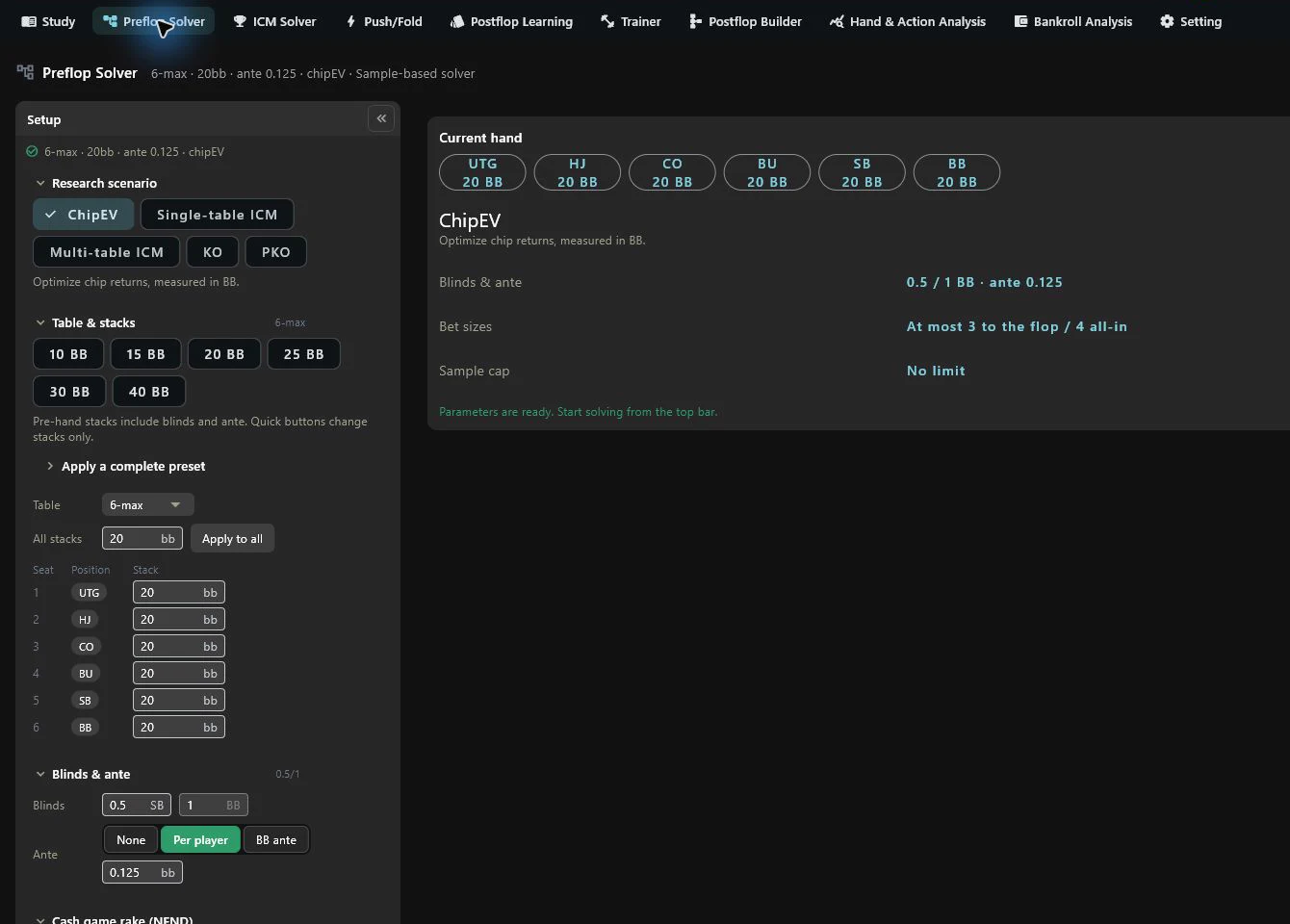
Choose a research-scenario template, then check the starting stacks for 2–9 players. Chip parameters use BB. Starting stacks include the blinds and antes about to be paid; check per-player ante and big-blind ante separately.
Choose ChipEV or ICM. Enter payouts and any applicable off-table stacks for ICM. For KO/PKO, also check fixed or individual bounties, the immediate cash share and money units.
Check open, isolation and subsequent raise sizes. Distinguish a raise-to amount in BB from a multiple of the bet faced. Review limping, SB completion, calling options and any seat-specific sizing overrides.
Check the tree's limits on players reaching the flop and players all-in together. These determine which lines are modelled; they are separate from table size.
Check the valuation dataset directory, data status, sample budget, workers and stopping conditions. If data is missing, select a directory containing the required dataset and wait for validation before solving.
Cash rake uses a rate and a cap in BB, with no flop no drop. ICM, bounties and future-game simulation (FGS) have combination restrictions; resolve the validation messages for the current inputs.
FGS requires ICM with positive payouts. With 2–3 players it can simulate 1 or 2 future hands; with 4–6 players it can simulate 1. It cannot be combined with rake, off-table stacks or bounties. Use either per-player ante or big-blind ante. It models blind rotation rather than the actual future deal.
Solve, stop and continue
Click Solve. Tree building must finish before stopping is available. During computation, use Stop. If a browsable result exists afterward, inspect it and use the available continuation button to add samples. Re-solve starts a new task using the setup.
After editing settings, the displayed result still belongs to the previous inputs. Check its configuration summary before solving with the new settings. Finishing a sample budget does not establish adequate samples at every node or an exact result.
Read node results
Follow seats and actions to a node. Check the acting player and each raise-to size before inspecting the matrix, frequencies and hand details. EV units depend on the payoff model; ChipEV and ICM values are not directly interchangeable.
For an undersampled node, Top up adds samples to the whole solve. Solve this node only holds earlier strategies fixed and solves decisions from this node onward. If preceding nodes also need work, review the steps listed in the confirmation. Local solving does not adjust earlier strategies. Restore whole-tree result returns to the overall solution.
Read the status of any local-solve marker. Continuing the whole solve can change earlier strategies, leaving a local result based on older incoming ranges. A node with no reach or samples does not provide a reliable conclusion from placeholder frequencies or missing EV.
Save and continue studying
Stop computation first, then choose a file operation:
| Operation | Purpose |
|---|---|
| Save / open result (.rtpreflop) | Retains browsable strategy results without the full resumable training state |
| Save / open progress (.rtpreflopstate) | Retains supported training state; after restoration, continue the remaining samples |
| Save as preflop range table (.rtprefloplib) | Name and classify the result for My range tables in Study |
Progress saving is available only for a supported task when its menu item is enabled. Restoration requires the saving account and matching valuation data. On failure, check the account, membership status and dataset directory. After a normal exit, the page may offer an autosaved checkpoint, but save important work explicitly; an interrupted power supply does not establish that a save completed.
Files are bound to the signed-in account. The database ZIP backup in Settings does not include them, so keep separate copies of results, progress and range tables. Changing a category label does not change the payoff model.
Choose a stopping condition
With an accuracy target in the sampling solver, the default maximum sample count is unlimited: the target stops the run. You can instead select a finite cap to control computation. Reaching a cap before the target does not mean the target was met; check the reported status. An unlimited run can take a long time and can be stopped manually after computation begins.
Valuation data is normally supplied by the installer and located automatically. Select a directory manually if data is missing or mismatched. Check the data status and abstraction selection; an existing directory alone does not establish compatibility.