
Build a postflop training package
Set positions, pot types and boards, then build a package for the Trainer.
On this page
Open the builder and check storage
Open Postflop Builder, or use Build Training Package in the Trainer. Check the data root directory first. It stores training packages separately from the Study solver cache. The interface recommends 50 GB free; building stops when available space falls below 1 GB.
Set up the training content
Select MTT/Cash, table size and a stack of at least 40 BB. For Cash, also select the rake option. Click seats on the table to assign Hero and GTO. IP and OOP follow postflop action order, regardless of which seat you selected first.
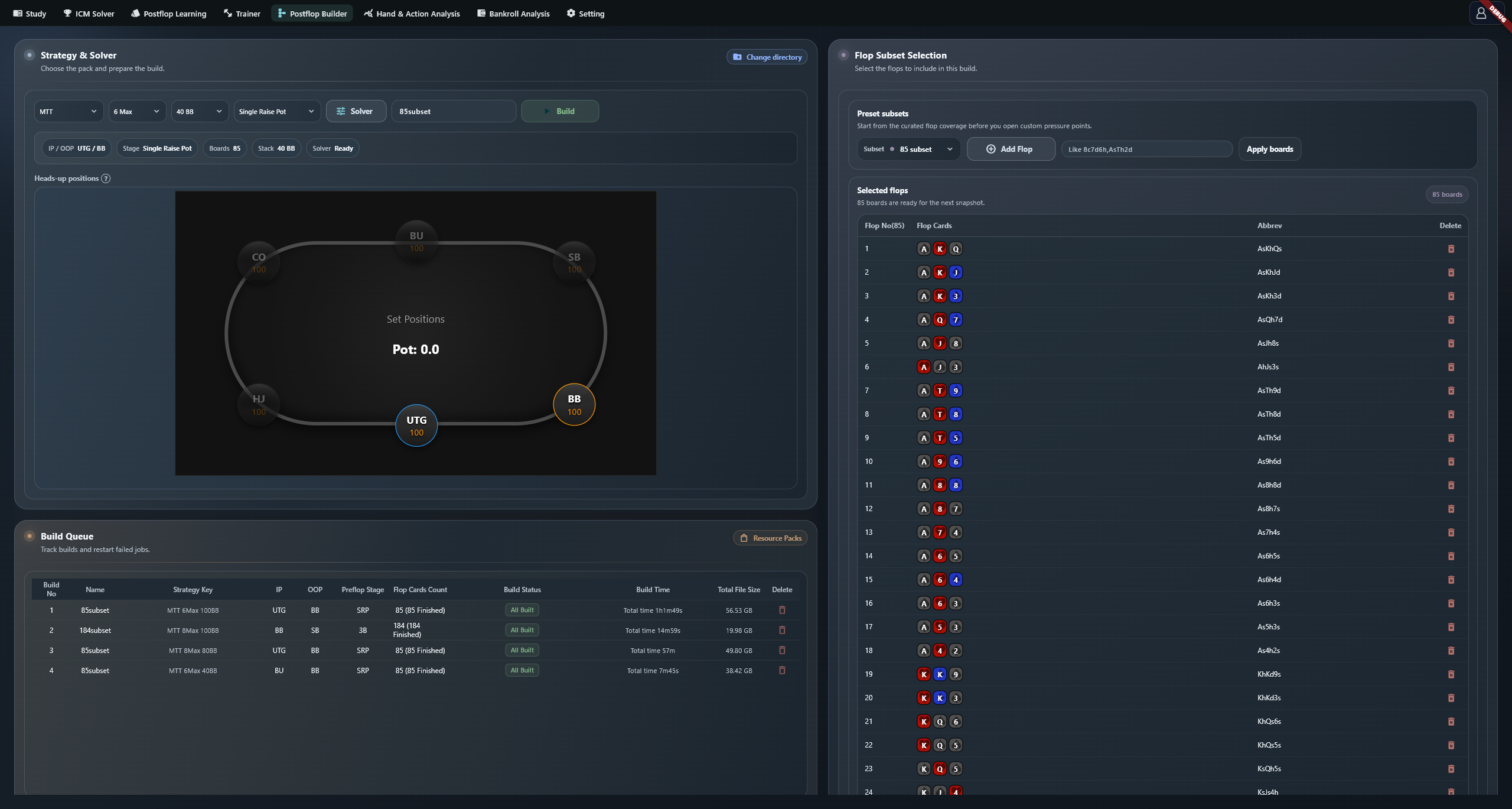
Choose Single Raise Pot or 3Bet Pot. 4Bet Pot requires at least 80 BB; Limp Pot requires SB versus BB. Review Solver again after changing the strategy or pot type.
Choose boards
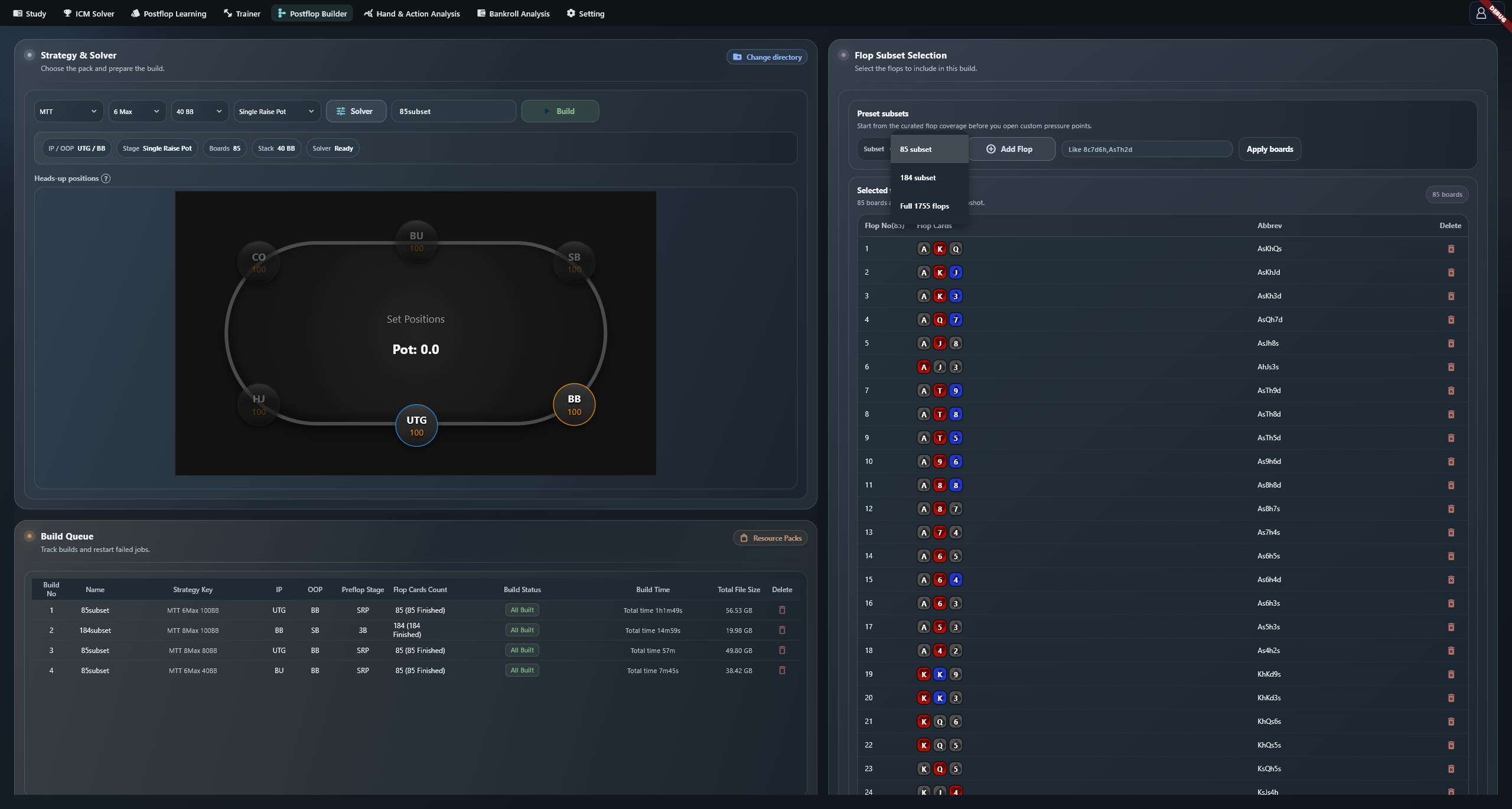
Presets contain 85, 184 or 1755 flops, with 85 selected on the first visit. Choosing a preset or pressing Apply boards replaces the entire board list. Add Flop appends one board. For text input, use comma-separated boards such as 8c7d6h,AsTh2d, with rank and suit for each card.
Review the solver and name the package
Open Solver to check pot, stack, ranges and sizes. Confirming changes the status to Ready. You can also build while it says Pending, in which case defaults are used. Thread count and target exploitability are in Setting.
Use Build Name for a recognizable name such as UTG-BB-SRP. An empty name appears as Unnamed snapshot. The same name and configuration identify the same job.
Build and use the package
Check the positions and board list, then press Build. The job enters the queue and starts when its turn comes. Each completed board is saved. Once the package shows All Built, select it in the Trainer.
Read progress and resume
The queue processes one job at a time and solves its boards in sequence. Wait to build means queued; a progress bar means running; All Built means complete. If a Build button appears, use it to continue. Completed boards are skipped.
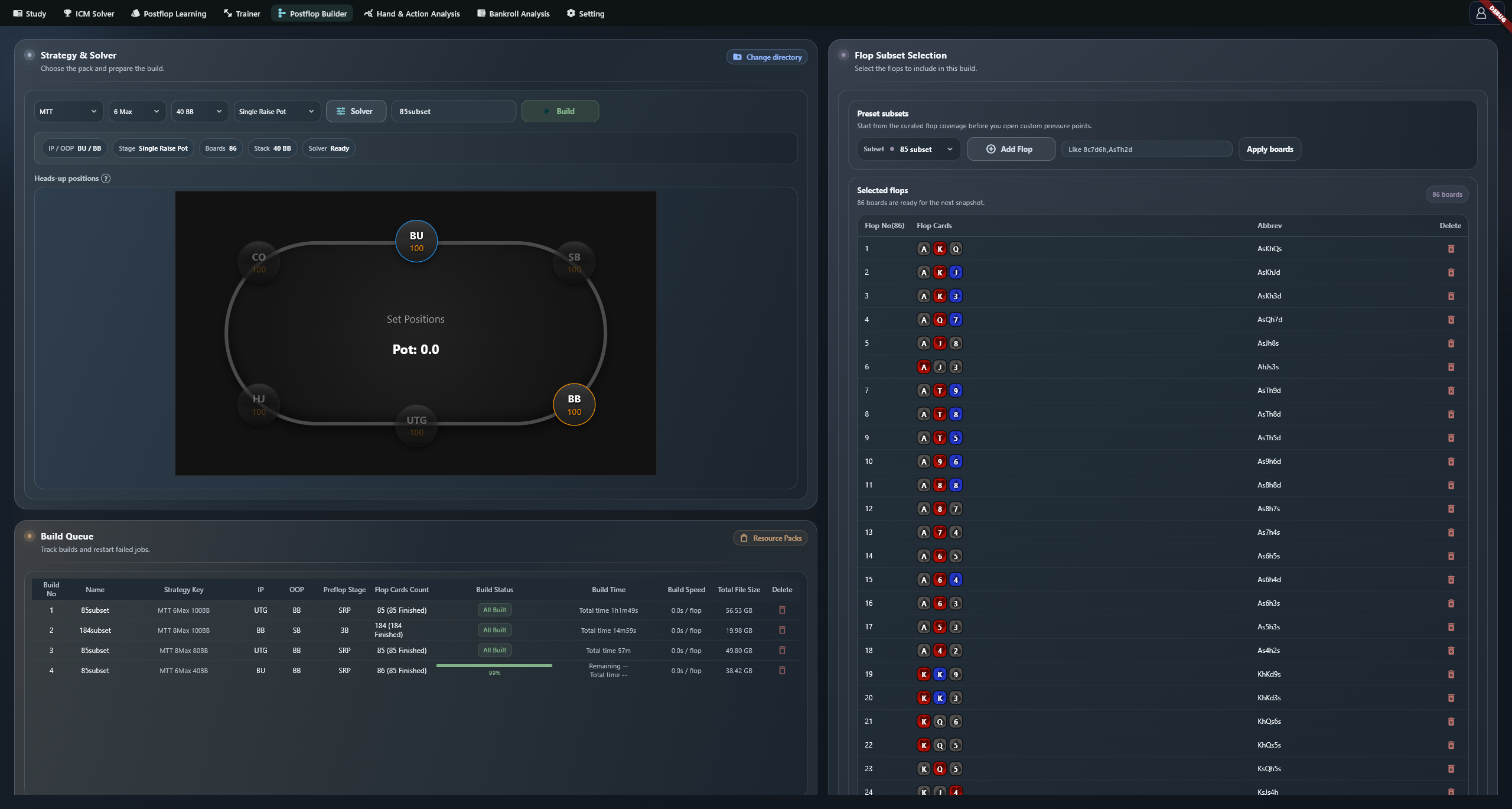
Flop Cards Count shows the total and completed counts, such as 85 (12 Finished). Build Time shows elapsed or estimated remaining time; Build Speed is average time per flop. Estimates vary with solving speed and can fluctuate after resuming. Total File Size shows the package's current disk usage.
Pause or delete a package
Leave the builder page to pause construction. When you return or reopen the app, inspect the job status and press Build if offered.
The row's Delete action and its Delete Cache confirmation delete the entire training package, including solved boards. You would need to rebuild it. Leave the page when you only need to pause.
Check build parameters
Before submitting, review strategy, IP/OOP, pot type, board count and Solver status. Review the solver again after changing strategy or pot type. To move packages to another disk, follow the directory migration steps.
Troubleshooting
For Please add flop cards first or Please select position first, supply the missing boards or seats. If Resource Packs does nothing, check that the data root exists and is accessible. After a low-space stop, free space or move the packages, then press Build to continue.